Many researchers are familiar with OneDrive and SharePoint and naturally assume they are suitable for storing and sharing all research data. However, projects involving large datasets, sensitive information, or long-running collaborations often require a different approach. This can create confusion when researchers are advised to use centrally managed research data storage instead.
Globus is a tool that helps bridge the gap between secure institutional storage and the ease of access and sharing that researchers have come to expect from cloud platforms. Through two practical examples, this article shows how Globus can be used to access data stored in University-managed research data storage and share it securely with external collaborators, without requiring command-line tools or specialist technical knowledge.
Why Globus?
While centrally managed research data storage provides the capacity, resilience and security required for research projects, working with that data can sometimes be less straightforward than using familiar services such as OneDrive or SharePoint. Large datasets often need to be transferred between storage systems and devices, and while tools such as rsync and SFTP can help, they typically require knowledge and experience that many researchers do not use in their day-to-day work.
As part of good research data management practice, we should consider not only where data is stored, but also how it will be accessed, transferred and shared throughout the lifecycle of a project. These considerations are often overlooked until they become a bottleneck in day-to-day research activities.
A common assumption is that copying files from a network drive to your computer is a simple local operation. In reality, the data must still travel across the University’s network between storage systems and devices. When datasets are large, transfers can be slow, fail part-way through, or require restarting from scratch.
This is where Globus comes in. Globus is designed specifically for transferring and sharing research data. Rather than simply copying files, it manages the transfer process, verifies data integrity, and can automatically resume interrupted transfers. Counterintuitive as it may seem, using Globus as an intermediary can often provide a faster and more reliable experience than traditional drag-and-drop transfers, particularly when working with large datasets.
The trade-off is that getting started with Globus requires a little more effort than dragging and dropping files in Windows Explorer. We’ve written this article to help you get started and understand where Globus can add value to your research workflow.
While additional SharePoint storage can be requested where there is a legitimate need, increasing a quota is not always the most appropriate solution for research data. Before requesting additional storage, researchers should review the University’s research data storage guidance. Factors such as data sensitivity, anticipated growth, collaboration requirements and retention obligations may make centrally managed research data storage a more suitable option.
Two Common Research Scenarios
While Globus also provides command-line tools and software development toolkits that can support automation and more advanced computational workflows, this article focuses on two common scenarios that can be completed entirely through the web interface:
- Accessing and transferring research data between University-managed research data storage and your computer from any location.
- Sharing a research dataset securely with an external collaborator.
This article complements the IT Services Knowledge Base guidance by focusing on practical research use cases and helping you decide when Globus may be an appropriate solution.
Before You Start: Understanding Collections
One aspect of Globus that can initially be confusing is its use of Collections.
A simplified model looks like this:
University of Leeds Storage Endpoint (central IT managed)
|
├── Collection A
├── Collection B
├── Collection C
├── Collection D
In practice, you will not work directly with the University storage endpoint. Instead, you will be granted access to one or more Collections, which represent specific areas of centrally managed research storage allocated to your project.
To get access to a collection, you need to request that Central IT make a specific folder available to you as a Globus Collection. Once access has been granted, you can locate and use that Collection through the Globus web interface.
Scenario 1: Accessing Research Data on Your Computer
You are a…
Researcher working with more than 1 TB of participant images, audio recordings or video files stored in University-managed research data storage.
You want to…
Transfer data to your local workstation for post-processing, without needing to be located on campus.
Important: This workflow is not suitable for all categories of sensitive research data. Please refer to the Library’s data classification guidance before transferring data to a local workstation.
Initial Setup
To transfer files between University storage and your computer, you will need Globus Connect Personal installed. This allows you to grant Globus access to locations on your local file system.
If doing this from a university laptop, you will need to request installation through IT Services – often accomplished quickest through an in-person visit to the IT Service Desk.
Once installed:
- Launch Globus Connect Personal.
- Locate the Globus icon in the Windows notification area:
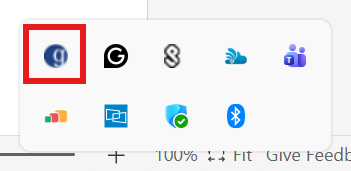
- Right-click the icon and select Options.
- Add one or more local folders that Globus is permitted to access.
For example:
C:\Users\USERNAME\Documents\FOLDERNAME These folders will then become available as transfer destinations within Globus.
Where appropriate, consider using a folder location that isn’t synced to OneDrive, as this may increase network activity following the transfer.
Transferring Data
- Sign in to the Globus web interface.
- Open File Manager.
- Search for your Collection by entering its name in the search bar (it may not be listed automatically.)
- Select the source folder in your Collection.
- Select your Globus Connect Personal folder as the destination.
- Open Transfer & Timer Options.
Before starting the transfer, you can choose useful options such as:
- Encrypting the transfer (recommended).
- Skipping files that already exist.
- Comparing modification times and file sizes when deciding whether to replace existing files.
Globus will manage the transfer in the background and notify you over email when it has completed.
What to Expect
During testing, a 12 GB dataset was transferred to a home workstation in approximately 10 minutes over a shared domestic Wi-Fi connection.
Performance will vary depending on network conditions and dataset characteristics, but the process was straightforward and reliable.
It is important to remember that Globus is performing a file transfer rather than providing version control. If files are renamed or changed in one location, Globus will not attempt to track that history in the way that services such as Git, SharePoint or OneDrive might.
A note on working with large datasets
While it may be tempting to synchronise an entire project dataset to a local machine, this is not always the most sustainable approach. Large datasets can quickly consume local disk space and may still exceed the quotas available in services such as OneDrive. This is one of the reasons why centrally managed research data storage is often recommended in the first place.
Where possible, develop a workflow that allows data to be processed in manageable batches. For example:
- Transfer only the files required for the current stage of analysis.
- Process the data locally.
- Transfer the resulting outputs back to University-managed research data storage using Globus.
- Remove temporary local copies when they are no longer needed.
This approach helps maintain centrally managed research data storage as the authoritative copy of the dataset while reducing pressure on local storage and minimising the risk of uncontrolled data duplication.
If you’re unsure how to structure a sustainable data processing workflow, particularly for large or complex datasets, or if your workflow could benefit from automation, consider getting in touch with our team via a Research Consulting Query.
Scenario 2: Sharing a Dataset with an External Collaborator
You are a…
Researcher working on a collaborative project with colleagues at another institution.
You want to…
Provide secure access to a subset of your project data without emailing files or creating University accounts for collaborators.
Step 1: Create a Globus Group
Groups provide a convenient way of managing permissions.
- Create a new Globus Group.
- Invite your collaborators to join it.
Collaborators do not need University of Leeds accounts. They can authenticate using supported identities such as:
- ORCID
- GitHub
- Institutional accounts from their own organisation
This allows researchers outside the University to participate without requiring local storage accounts.
Step 2: Create a Guest Collection
Next, create a Guest Collection from the Collection you have access to.
A Guest Collection is effectively a controlled view of a folder within an existing Collection, allowing selected users access without exposing the wider storage area.
When creating the Guest Collection:
- Select the folder you wish to share.
- Create a new Guest Collection.
- Give it a meaningful name.
Step 3: Share the Guest Collection with the Group
Once created:
- Open the sharing permissions for the Guest Collection.
- Grant access to the Globus Group.
- Choose the appropriate permission level (e.g., read or write access).
Final Thoughts
Globus provides a point-and-click interface for transferring research data securely and reliably to and from institutional storage, whether on or off campus. For many researchers, this is considerably more approachable than command-line tools such as rsync or SFTP and helps make centrally managed research storage a practical option for projects involving large volumes of data.
In this article we’ve focused on two common use cases: transferring data between University storage and a local workstation, and sharing data securely with external collaborators. Globus can also support more advanced computational workflows, including transfers to and from high-performance computing (HPC) platforms, automated transfers via command-line tools, and integration with software workflows through APIs and software development toolkits. Further guidance on the HPC use case is available in the Aire platform documentation.
Need more support?
Globus is not without its quirks, and it does not remove the need for careful planning. Whether you work in the arts and humanities, social sciences, or STEM disciplines, managing large or sensitive datasets requires consideration of how data will be stored, transferred, shared, secured and ultimately disposed of at the end of a project.
The Library’s Research Data Management service should be your first port of call for data management planning and support. Thinking about these issues early can save considerable time and effort later, helping you adopt workflows that are both secure and sustainable.
For more information about University-managed research data storage and links to relevant resources, visit our Research Data Storage Service page.